
FREE OVERNIGHT DELIVERY to every Hawaiian island · no island surcharges Save 10% on banners, yard signs & sticker sheets with SAVE10TODAY Call or text 808-808-2524
For designers

Product Design Templates

Free templates for products with a base or a cut line. Download a template, design on top of it in your own software, then upload your print-ready file on the product page.

  • Vector PDF templates for Illustrator, Photoshop, CorelDRAW, Affinity Designer and Inkscape
  • Exact sizes, safe areas and registration marks shown
  • Banners, yard signs, magnets and metal signs need no template: design at the exact size you order
Not a designer?

Skip the template. Customize one of our ready-made designs online for free, or let our team design it for you.

Open the Template Editor Design help levels
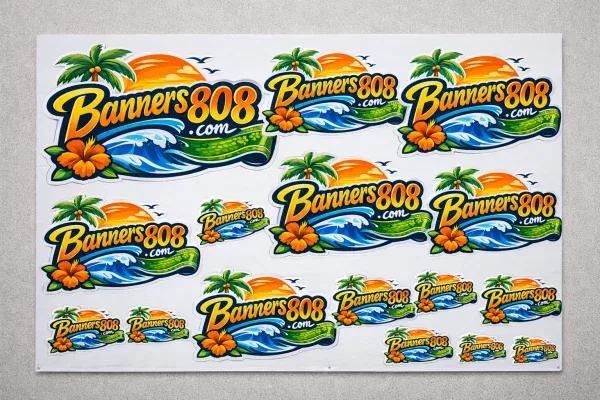
Contour cut sticker sheet

12 x 24 Sticker Sheet

Template: 12 x 24 in, print + cut file

Fit as many stickers as you like, at least 1/4" apart and inside the 1/2" safe area. Send a print file and a matching cut-line file, both with the four black registration dots.

Shop sticker sheets →
Template user guide

How to use our templates

1. Design on the template

  • Open the PDF in Illustrator, Photoshop, CorelDRAW, Affinity Designer or Inkscape.
  • Create your design on the layer named Artwork, or on a new layer above the template.
  • Don't resize the template or artboard. Size and placement are critical for a proper print.
  • The template is a guide for placement. Anything left blank prints white (we print on white material).
  • Sticker sheets: keep the four black registration dots exactly where they are.

2. Prepare the file

  • Delete all template layers, hidden layers and guides. Remove everything you don't want printed.
  • Outline all text (create outlines / convert to curves).
  • Embed all images, then flatten transparencies, gradients, effects and symbols.
  • CMYK color only. Spot and RGB colors may print incorrectly.
  • 150 dpi at full size. Graphics over 200" can be built to scale.

3. Save and order

  • Save a single-page flattened PDF or a full-size JPEG (150 dpi), up to 300 MB.
  • No crop marks or bleed; they would be printed.
  • Your file must be the exact size of the template (not just the graphic).
  • On the product page choose Level 5 – Print Ready, upload your file and pick how you'd like it printed.

Software tips

  • Illustrator: Type > Create Outlines, then File > Save a Copy > Adobe PDF (High Quality Print, no marks or bleeds).
  • CorelDRAW: convert text to curves (Ctrl+Q), then File > Publish to PDF with printer's marks off.
  • Photoshop: flatten, CMYK, 150 ppi, then save as Photoshop PDF or maximum-quality JPEG.
  • Inkscape: Path > Object to Path for text, then Save a Copy as PDF.
  • InDesign: we don't use InDesign files. Flatten in Illustrator or Photoshop and send a JPEG.
  • Other programs: export a full-size JPEG to avoid surprises.

Printing in panels? We don't have fixed panel measurements. If your job prints in panels, include at least 1" of overlap.

Questions about file setup? Call or text 808-808-2524 or ask us in the help chat. See also our artwork guidelines.